Smart Plug Won't Connect to Wi-Fi? 9 Fixes That Work
If your smart plug won't finish Wi-Fi setup, the single most common cause is that it needs a 2.4GHz network and your phone is handing it a 5GHz (or combined) one. Nearly every consumer Wi-Fi smart plug connects only on 2.4GHz, so if pairing stalls at "connecting," start there and then work down the list below. The nine fixes are ordered from most-likely to least-likely, so you can stop as soon as the plug appears in your app.
Why smart plugs fail to connect
Understanding the cause makes the fixes faster. A Wi-Fi smart plug has a small, low-power radio designed for range and battery-friendly firmware, not speed — so manufacturers build them for the 2.4GHz band, which travels farther and penetrates walls better than 5GHz. During setup, the plug briefly becomes its own hotspot, your phone connects to it, hands over your home Wi-Fi name and password, and the plug then reboots onto your network. Any break in that hand-off — wrong band, wrong password, weak signal, or a router feature that blocks device-to-device traffic — leaves the plug stuck.
The 9 fixes, in order
- 1Put your phone on the 2.4GHz band
- 2Re-enter pairing mode (fast blink)
- 3Move the plug next to the router
1. Connect your phone to the 2.4GHz band first
Most setup apps borrow your phone's current Wi-Fi connection to configure the plug. If your phone is on the 5GHz band, the plug — which can't see 5GHz — fails silently. If your router broadcasts both bands under one network name, temporarily separate them or connect specifically to the 2.4GHz network before opening the app. Our guide to a stable smart-home Wi-Fi network walks through creating a dedicated 2.4GHz SSID, which permanently prevents this problem.
2. Confirm the plug is actually in pairing mode
A plug that's powered on isn't necessarily discoverable. Look for a specific light pattern — usually a fast blink — that signals pairing mode. If it's off, solid, or blinking slowly, press and hold the plug's button (typically 5–10 seconds) until the light changes. Check your model's quick-start guide for the exact timing; some plugs also offer a "long" reset hold that returns them to factory defaults, which is worth doing if the plug was previously paired to another network.
3. Move the plug close to the router for setup
Pairing needs a clean two-way conversation between phone, plug, and router. Set up the plug in the same room as the router, then relocate it afterward. If the spot where you actually want the plug has weak Wi-Fi, that's a coverage issue worth solving separately — see how to improve Wi-Fi for smart-home devices.
4. Re-type your Wi-Fi password carefully
The plug can't tell you a password is wrong — it just fails to join. Re-enter it and watch for a capital letter you missed, a 0-versus-O, or a trailing space. Also check your network name for emoji or special characters; some plug firmware can't parse them.
5. Reboot the plug, your phone, and the router
Unplug the smart plug for 10 seconds, toggle your phone's Wi-Fi off and on, and restart the router. This clears the temporary hotspot state on the plug and any stale device table on the router. If your plug went dark specifically after a power event, our guide on smart devices offline after a power outage covers the recovery steps in more depth.
6. Turn off band steering during setup
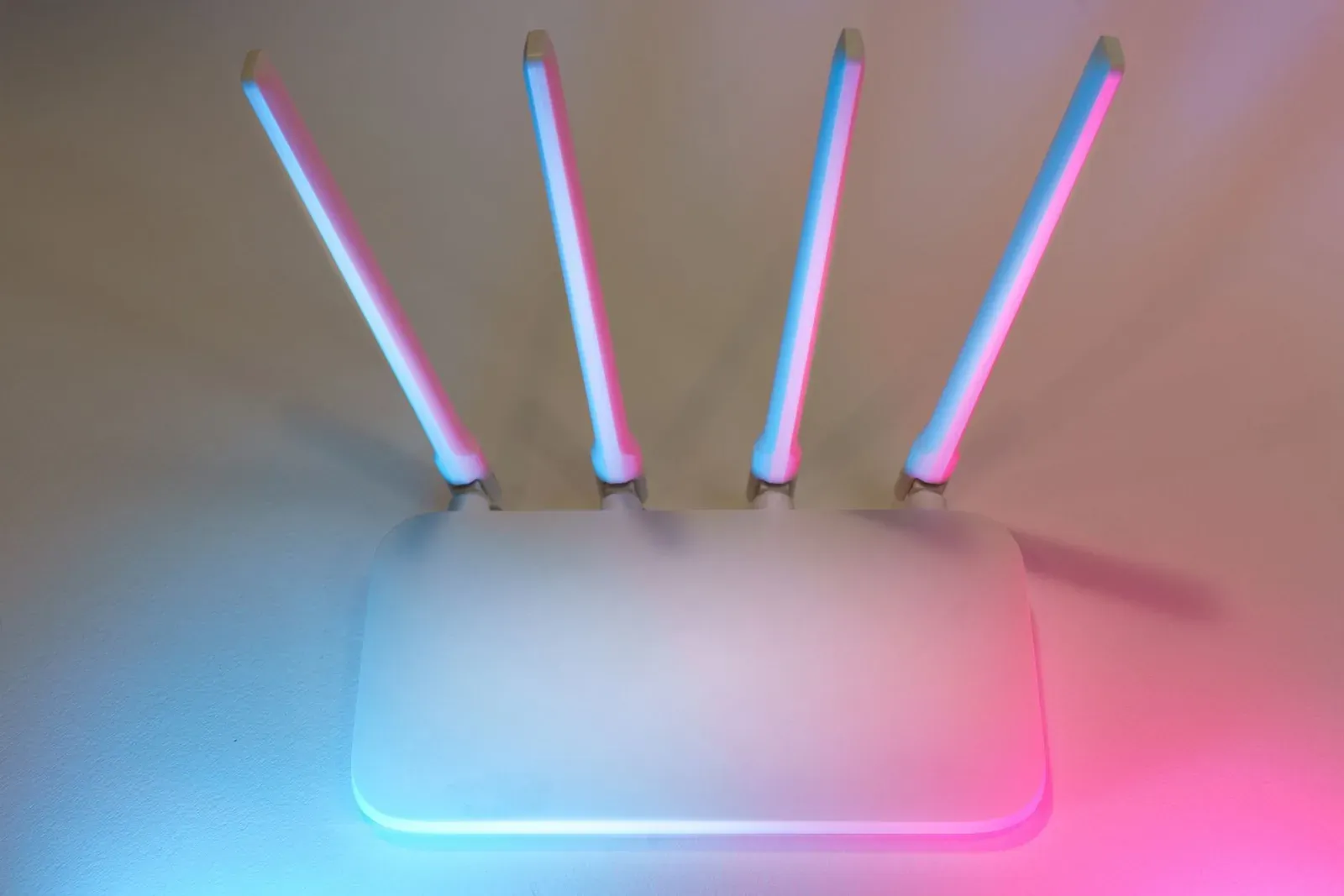
Many modern routers use "band steering" or "smart connect" to push devices onto 5GHz automatically. That's helpful for phones and laptops but actively harmful for a 2.4GHz-only plug. In your router's admin settings, disable band steering temporarily (or use the separate 2.4GHz SSID from Fix 1) so the plug can lock onto the right band.
7. Disable AP/client isolation
"AP isolation" or "client isolation" prevents devices on your network from talking to each other — a security feature common on guest networks. It also stops your phone from reaching the plug during setup. Make sure you're pairing on your main network, not a guest network, and confirm isolation is off in the router settings.
8. Check for a full DHCP pool or MAC filtering
If your router hands out a limited range of IP addresses and that pool is full, a new plug has nowhere to land. Expand the DHCP range or remove an old, unused device. If you use MAC-address filtering, add the plug's MAC (printed on the device or box). Setting a DHCP reservation afterward also keeps the plug's address stable so it doesn't drop off later.
9. Factory-reset and retry — or suspect the plug
If nothing above works, perform a full factory reset (the longer button hold) and pair from scratch. Try a different phone if you can, since some Android/iOS permission prompts — particularly location access, which the setup app needs to scan for the plug's hotspot — can silently block discovery. If the plug still won't connect and others on your network work fine, the unit's radio may be faulty; contact the manufacturer while it's under warranty.
Wi-Fi vs. Matter/Thread plugs: a quick note
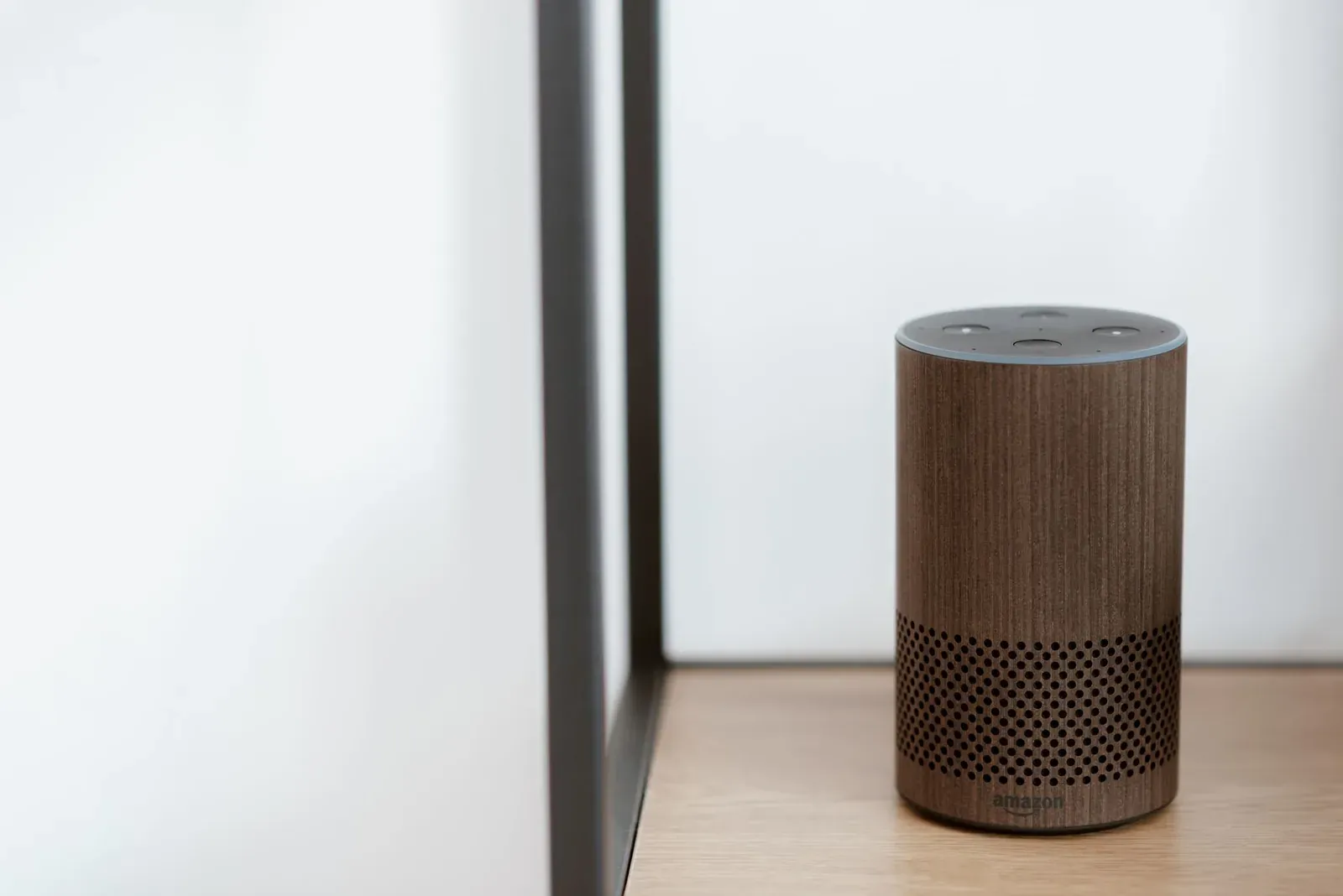
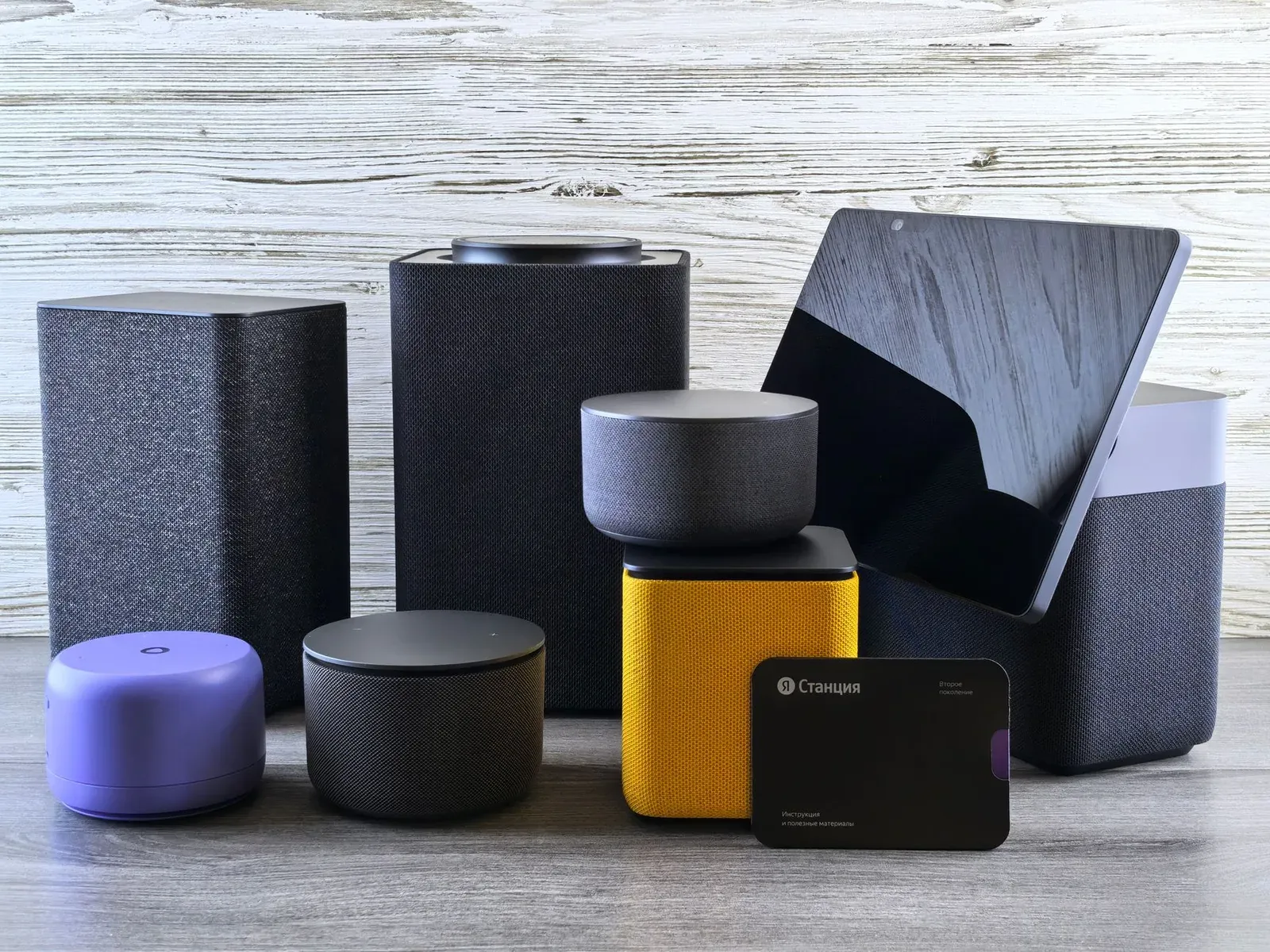
Not all smart plugs connect the same way. A plain Wi-Fi plug joins your router directly. A Matter-over-Wi-Fi plug also uses your 2.4GHz Wi-Fi but is added through a platform like Apple Home, Google Home, Alexa, or SmartThings using a QR/setup code. A Thread plug doesn't use Wi-Fi at all — it needs a Thread border router (built into many smart speakers and hubs). Knowing which type you have tells you where to troubleshoot.
| Plug type | Network it uses | Needs a hub/controller? | Where setup can break |
|---|---|---|---|
| Wi-Fi (app-based) | 2.4GHz Wi-Fi | No | Band mismatch, password, router features |
| Matter-over-Wi-Fi | 2.4GHz Wi-Fi | A Matter controller (phone/hub) | Setup code, controller, same-network requirement |
| Thread | Thread mesh | Yes — a Thread border router | No/weak border router, credentials |
When it's the router, not the plug
If you've replaced or reconfigured your router recently, the plug may have connected fine originally and lost its saved credentials. Wi-Fi plugs generally need to be re-paired after a network-name or password change. Matter devices behave differently — see Matter device offline after a router change. And if your whole system is flaky, a broader look at 2.4GHz interference often pays off, since the crowded 2.4GHz band is exactly where every smart plug lives.
Frequently asked questions
Why does my smart plug only work on 2.4GHz Wi-Fi?
The 2.4GHz band offers better range and wall penetration than 5GHz, and its lower data needs suit a simple on/off device. Manufacturers standardize on 2.4GHz to keep plugs cheap and reliable, so the app expects your phone to be on that band during setup.
Do I need a hub for a Wi-Fi smart plug?
No. A standard Wi-Fi plug connects straight to your router and works through its own app or a linked voice assistant. Only Thread-based plugs require a border router. If you're weighing your options, our 2026 guide to smart-home hubs breaks down when one helps.
My plug pairs but immediately goes offline — what now?
That points to weak signal at the plug's final location or an unstable IP address, not a pairing fault. Move the plug closer to an access point, or set a DHCP reservation so its address stays fixed. A mesh Wi-Fi system can also close dead spots.
Does resetting the plug delete my automations?
A factory reset clears the plug's own Wi-Fi credentials and removes it from your app, so any schedules or automations tied to it will need to be recreated after you re-pair. It won't affect other devices on your network.