How to Set Up a Google Home Bedtime Wind-Down Routine
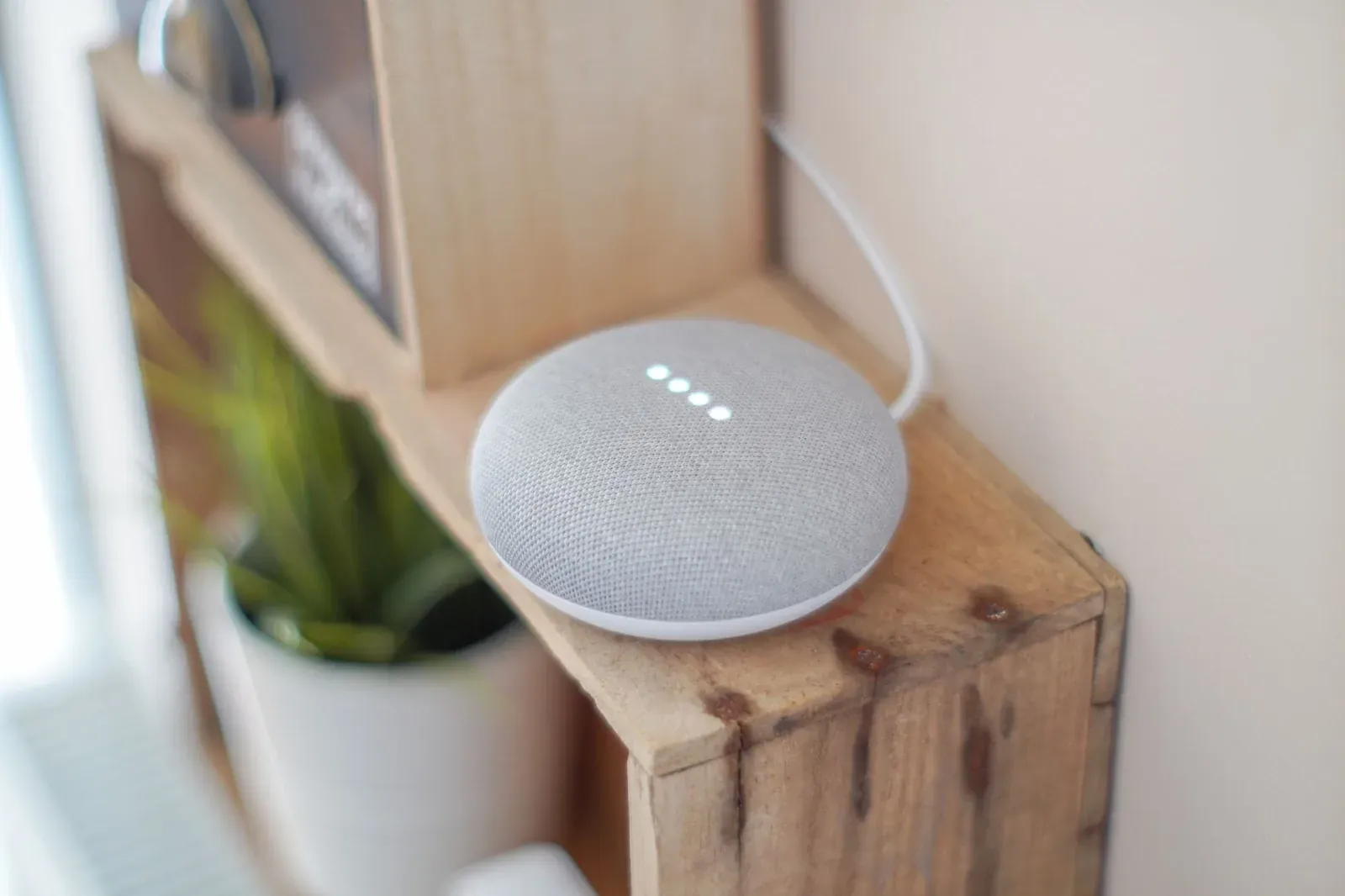
A bedtime wind-down routine on Google Home is a single trigger—usually a voice command like "Hey Google, good night" or a scheduled time—that chains together several actions at once: dimming or turning off lights, nudging the thermostat down, silencing broadcasts and notifications, and optionally starting calming sounds. You build it in the Google Home app under the Routines (Automations) area, where you choose a starter (what kicks it off) and a list of actions (what happens). The whole thing takes about ten minutes, and the payoff is a consistent, low-friction cue that tells your body—and your house—that the day is over.
Before you start: what you need
A wind-down routine only controls devices that are already linked to your home. If a light or thermostat isn't showing up in the app yet, add it first—our guide on how to add a device to Google Home walks through pairing and room assignment. If this is a brand-new setup, start with setting up Google Home and Nest for the first time.
Two distinctions matter before you build. First, Google offers household routines (shared with everyone in the home) and personal routines (tied to your voice through Voice Match). A shared "good night" works for anyone who says it; a personal one runs your version of it. If you want per-person behavior, confirm Voice Match is set up first. Second, a scheduled starter—one that fires at, say, 10:30 p.m. without you saying anything—requires an eligible Nest speaker or display on the account to run in the background.
Step 1: Open Automations and create a new routine
- Open the Google Home app and look for the Automations (sometimes labeled Routines) section. Depending on your app version it may sit under a Routines shortcut on the home screen or inside the settings/menu area.
- Choose to create a new routine. You'll be asked to pick between a household and a personal routine—pick household if you want the command to work for everyone, personal if it should follow your voice.
- Give it a clear name like Bedtime or Wind down so it's easy to find and edit later.
Step 2: Choose how it starts
The starter is the trigger. You can add more than one, so a common setup is a voice phrase plus a backup schedule.
- Voice: Add phrases you'd naturally say—"good night," "I'm going to bed," "time for bed." Google matches these loosely, so a few variations cover you.
- Scheduled time: Set a time and the days it should run (for example, weeknights at 10:30 p.m.). This is the hands-off option, and it's what makes the routine a true wind-down—it can start easing the house down before you even think about it.
Step 3: Add your wind-down actions
Actions run in the order you list them. Here's a sensible sequence, and the reasoning behind each:
- Adjust lighting. Dim rather than kill the lights first—bright-to-dark is jarring, and warm, low light supports the melatonin rise that helps you feel sleepy. Turn hallway or bedroom lights to a low level, then fully off in living spaces you're leaving.
- Set the thermostat. A slightly cooler bedroom is widely recommended for sleep. If you have a Nest thermostat, point the action at your night/eco temperature. Our Nest schedule and Eco temperatures guide explains how those setpoints interact so the routine doesn't fight an existing schedule.
- Silence interruptions. Turn on Do Not Disturb on your speakers and displays so late-night broadcasts and reminders don't wake the house.
- Lock up and check doors. If you have compatible smart locks, add a lock action. This doubles as a nightly security pass.
- Play calming media. Add an action to play sleep sounds, white noise, or a quiet playlist. You can also have Assistant read your next alarm or tomorrow's first calendar event.
- 1Create a household or personal routine and name it “Bedtime”
- 2Add a voice starter (“good night”) and/or a scheduled time
- 3Add actions: dim lights, set night thermostat, enable Do Not Disturb, lock doors
- 4Add a final action to play sleep sounds
- 5Save, then test by saying the phrase
Step 4: Save and test it
Save the routine, then trigger it manually—say your phrase or tap the routine to run it now. Watch each action fire in order. If a device doesn't respond, it's usually because it isn't linked, is assigned to the wrong room, or is offline. If several devices misbehave at once, a Wi-Fi issue is more likely than the routine itself; see changing the Wi-Fi network on Google Home.
Personal vs. household routines at a glance
| Aspect | Household routine | Personal routine |
|---|---|---|
| Who can trigger it | Anyone in the home | Only you, via Voice Match |
| Best for | Shared "good night" for the whole house | Your own alarm, calendar, or media |
| Requires Voice Match | No | Yes |
| Personalized results (calendar, reminders) | Limited | Full |
For more ideas on chaining triggers and actions—including presence and time-based logic—see our broader guide on creating Google Home routines and automations.
Frequently asked questions
Do I need a Nest speaker for a scheduled bedtime routine?
For a routine that runs at a set time without a voice command, yes—you need an eligible Nest speaker or display on the account so Google has something to run the automation in the background. Voice-triggered routines can run from any Google Assistant speaker or display.
Can each person have their own "good night" routine?
Yes. Create a personal routine and make sure Voice Match is set up for each person. Assistant then recognizes who's speaking and runs that individual's version, which can pull their own alarm, calendar, and preferred sounds.
Why do my lights turn off but the thermostat doesn't change?
Actions are independent, so one failing usually points to a specific device. Confirm the Nest thermostat is linked and online, and that the routine's setpoint isn't being overridden by an existing schedule. Our Nest thermostat setup guide covers linking and schedule conflicts.
Can the routine gradually dim lights over time?
A single routine sets lights to a chosen level at trigger time rather than fading them over an hour. To approximate a gentle fade, use two starters—one scheduled earlier to set a low, warm level, and a later "good night" to finish turning things off.