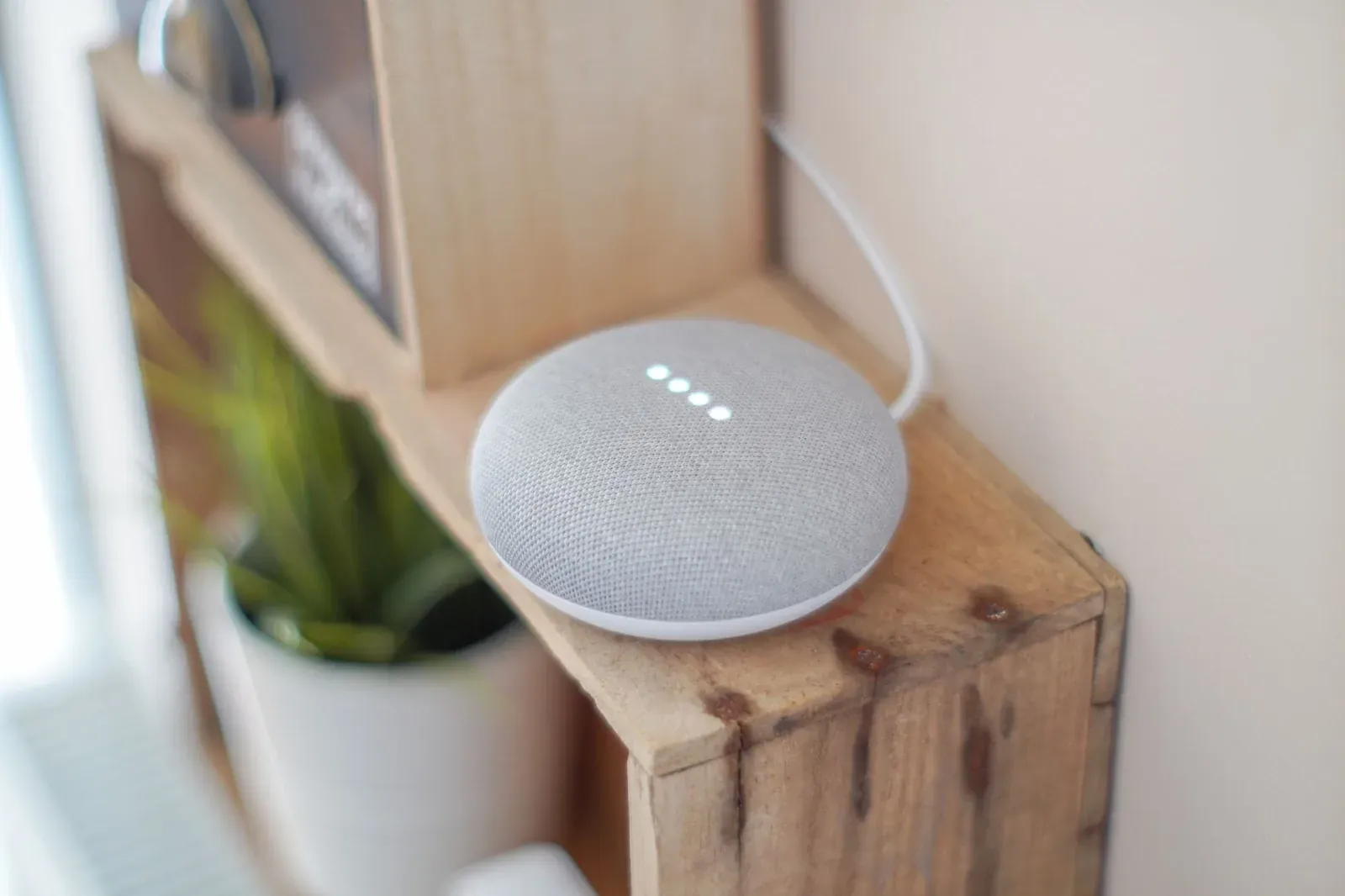
How to Set Up a Google Nest Speaker Group for Whole-Home Audio
To set up a Google Nest speaker group, open the Google Home app, tap the plus (+) button, choose to create a speaker group, select the Nest speakers and displays you want to include, name the group, and save. Once created, you can play music, radio, or podcasts to every speaker in the group at once and hear it play in sync throughout your home. The whole process takes a couple of minutes and doesn't require any extra hardware beyond the speakers you already own.
What a speaker group actually does
A speaker group is a virtual container that ties two or more Google-compatible speakers together so they play the same audio in sync. When you cast or ask Google Assistant to play something "on" the group, Google Home streams a synchronized signal to each member so you don't get an echo effect as you walk from room to room. This is different from a stereo pair, where two identical speakers act as dedicated left and right channels for a single-room setup.
Speaker groups are built for casting audio — music services, radio, podcasts, and audiobooks. They are not designed to route TV or movie sound, and a group won't turn your speakers into surround speakers for a Chromecast video stream. If you're deciding which speakers to buy for this before you start, our comparison of the Nest Mini vs Nest Audio vs Nest Hub is a useful starting point.
Before you start: requirements
Getting the prerequisites right up front saves most of the frustration people run into. Every speaker you want to group needs to already be set up and working on its own.
- All speakers on one Google account and one Wi-Fi network. Devices signed in to different accounts, or split across a main network and a guest or extender network, often won't appear as groupable or will drift out of sync.
- Each device already added to a home. If a speaker isn't showing up, add it first — our guide on how to add a device to Google Home walks through it. If you're starting completely fresh, see how to set up Google Home & Nest for the first time.
- Compatible speakers. Nest Mini, Nest Audio, Nest Hub, older Google Home models, and many Chromecast built-in third-party speakers can all join a group.
How to create a Google Nest speaker group
- 1Tap the plus button in the Google Home app and choose to create a speaker group
- 2Select the speakers and displays you want to include
- 3Name the group something you’ll say out loud
- 4Save, then test with a voice command
- Open the Google Home app on the phone or tablet signed in to the same Google account as your speakers.
- Tap the plus (+) button, usually near the top of the main screen, and look for the option to create a speaker group (sometimes shown under a "Create" or "Add" menu — wording shifts between app versions).
- Select the devices you want in the group by ticking each speaker or display. Only compatible, online devices on your account will appear.
- Name the group. Pick something natural to say, like "Downstairs" or "Whole House," because you'll use this name in voice commands. Avoid names that clash with an existing room or device.
- Save the group. It now appears in the app as its own tile and as a target you can cast to.
- Test it. Say, "Hey Google, play jazz on Whole House," or cast from a music app and pick the group as the output. All members should start playing together.
Speaker group vs. stereo pair
People often mix these up. Both link speakers, but they solve different problems.
- Two or more speakers, any mix of models
- Same audio synced across rooms for whole-home listening
- Great for background music throughout the house
- Exactly two identical speakers
- Splits sound into dedicated left and right channels
- Best for focused, room-filling stereo in one spot
| Feature | Speaker group | Stereo pair |
|---|---|---|
| Number of devices | 2 or more | Exactly 2 |
| Devices must match? | No, mix any compatible speakers | Yes, two of the same model |
| Audio behavior | Same sound synced everywhere | True left/right stereo separation |
| Best for | Whole-home background listening | Immersive sound in one room |
| Can join a bigger group? | — | Yes, a pair can be a group member |
Using and adjusting your group
Once the group exists, casting-enabled apps like YouTube Music, Spotify, and many others will list it as an output alongside individual speakers. Voice commands work the same way — just say the group name. You can adjust the volume of the whole group at once, or set individual speaker volumes from the app so a speaker in a small room isn't as loud as one in an open living area.
To change membership later, open the group's settings in the Google Home app and add or remove speakers, or rename it. A single speaker can belong to several groups at the same time — for example, a kitchen speaker could be in both a "Downstairs" group and a "Whole House" group. For more ways to control your speakers by voice, our list of useful Google Assistant commands is worth a look, and you can also fold group playback into Google Home routines and automations — say, a morning routine that plays the news on your kitchen group.
Troubleshooting a speaker group
Most group problems trace back to network or account mismatches. Work through these in order.
- A speaker won't play or drops out. Confirm it's on the same Wi-Fi as the others and shows as online in the app. Speakers on a separate band, extender SSID, or guest network are the most common cause of one device staying silent.
- Audio is out of sync or echoes. Restart the affected speaker, and check for a weak Wi-Fi signal in that room. A speaker straining to hold a connection will lag behind the group.
- A device is missing from the list. Make sure it's signed in to the same Google account and fully set up. If you recently switched phones, verify everything migrated correctly — see how to move Google Home to a new phone.
- Nothing responds to the group name. Try the exact name shown in the app, and avoid names that overlap with a room or an individual speaker.
- Persistent issues with one speaker. As a last resort, remove it from the group, factory reset it, and re-add it — our guide on how to factory reset a Google Home or Nest device covers the steps.
Frequently asked questions
How many speakers can I add to a group?
You can add well beyond a handful of speakers to a single group, which is more than enough for a typical home. The practical limit is your Wi-Fi: many simultaneous synced streams lean on your network, so if playback stutters, a stronger router or better speaker placement usually helps more than reducing the group size.
Can I mix different Nest models in one group?
Yes. A speaker group can combine a Nest Mini, a Nest Audio, and a Nest Hub in any mix, along with compatible Chromecast built-in speakers. They don't have to match — that only matters for a stereo pair, which requires two identical models.
Will a speaker group play my TV or Chromecast audio?
No. Speaker groups are built for cast audio such as music, radio, and podcasts. They won't act as surround or output speakers for a Chromecast video stream or a TV, which route sound differently.
Can I use a speaker group in a routine or for broadcasts?
You can target a group in a routine so, for example, music starts across several rooms at a set time. Broadcasts work a little differently — they go to your speakers through Google's intercom feature rather than the group's audio stream. See how to broadcast messages on Google Home for that.