How to Connect a Ring Doorbell to Alexa (Announcements + Live View)
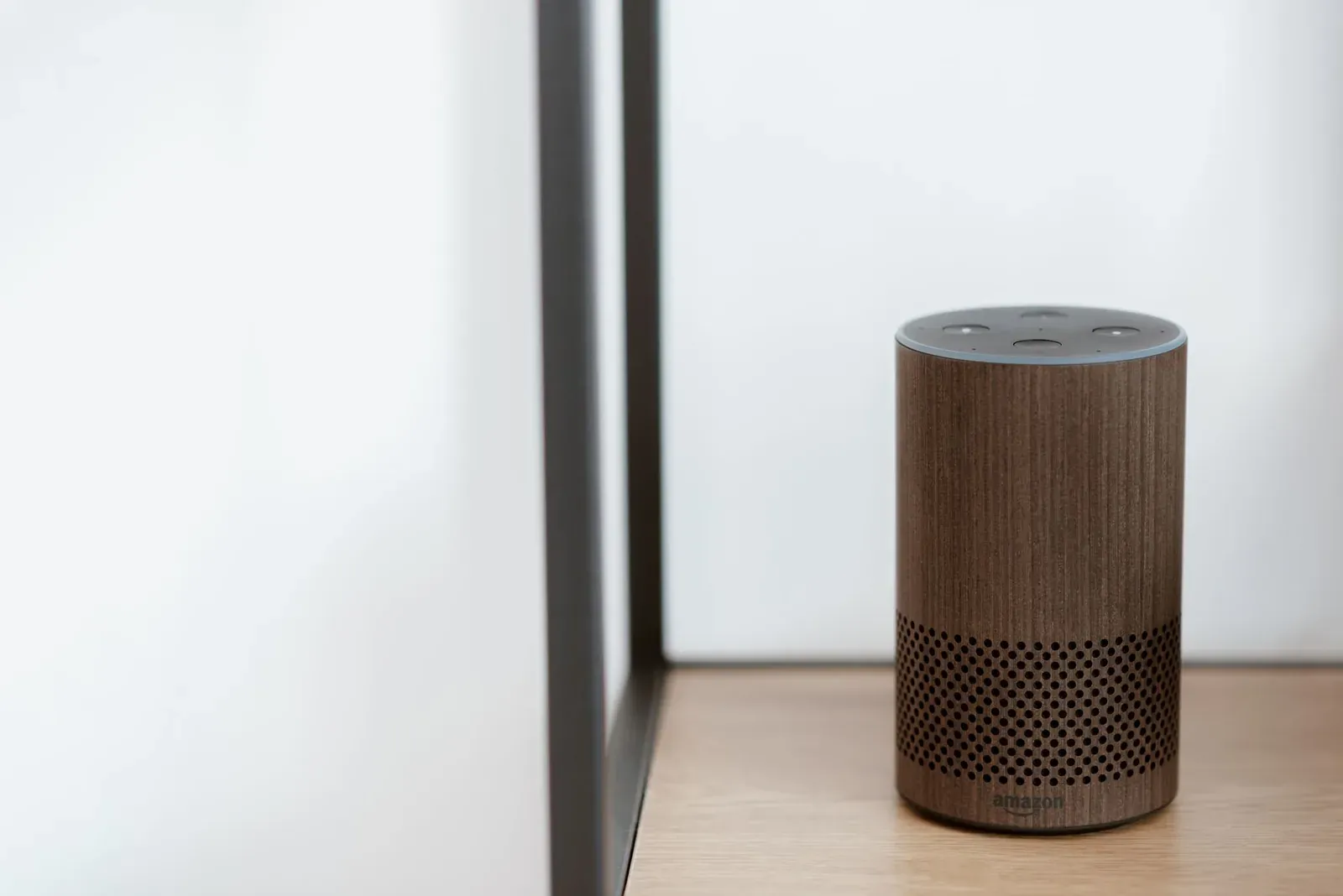
To connect a Ring Doorbell to Alexa, you link your Ring account inside the Alexa app by enabling the Ring skill, then let Alexa discover the doorbell as a smart-home device. Once it's linked, an Echo speaker can announce when someone presses the button, and an Echo Show (or Fire TV) can pull up Live View on command. Both companies are owned by Amazon, so the integration is official and fairly reliable — but the announcement and video features are configured in different places, which is where most people get stuck.
What you need before you start
The integration relies on three accounts and pieces of hardware talking to each other over your Wi-Fi. Missing any one of them is the most common reason setup stalls.
- A working Ring Doorbell that's already set up and online in the Ring app. Alexa can't configure the doorbell itself — it only connects to a device that already works.
- The Alexa app signed in to the Amazon account tied to your Echo devices.
- An Echo device. Any Echo can do spoken announcements. For Live View — the two-way video feed — you need a screen: an Echo Show or a Fire TV / Fire TV Stick.
Note that a Ring Doorbell does not need a separate hub or bridge. It connects directly to your home Wi-Fi, so there's no extra box to buy for the Alexa link to work.
Step 1: Enable the Ring skill and link your account
Alexa talks to Ring through a "skill" — Amazon's term for a third-party integration. Even though both brands are Amazon-owned, the skill still has to be enabled and your Ring account authorized.
- Open the Alexa app and go to the More menu, then Skills & Games.
- Search for Ring and select the official Ring skill.
- Tap Enable to Use. You'll be prompted to sign in to your Ring account and authorize the connection.
- Approve the permissions. This grants Alexa access to your Ring devices and their notifications.
If your Ring and Amazon accounts use the same email, the sign-in is usually one tap. If they're different, have your Ring password ready — you're authorizing Ring, not Amazon, at this step.
- 1Enable the Ring skill in the Alexa app
- 2Sign in and authorize your Ring account
- 3Let Alexa discover the doorbell
- 4Turn on doorbell press announcements per Echo
Step 2: Discover the doorbell in Alexa
After the skill is linked, Alexa needs to find the actual device. It often does this automatically, but you can force it:
- In the Alexa app, open Devices.
- Tap the + (Add) icon and choose Add Device, then select Ring or run a general device scan.
- Wait for discovery to finish — it can take up to a minute. Your doorbell should appear under Cameras or All Devices.
If the doorbell doesn't show up, confirm it's online in the Ring app first. Alexa can only see devices that Ring itself reports as connected.
Step 3: Turn on doorbell announcements
This is the feature most people actually want: hearing “Someone is at the front door” on their Echo. It's controlled per Echo device, and it's off by default, so enabling the skill alone won't make your speakers talk.
- In the Alexa app, open Devices and select your doorbell.
- Open its settings (the gear icon) and look for Announcements or Doorbell Press Announcement.
- Toggle it on, then choose which Echo devices should make the announcement.
Alexa announcements are distinct from Drop In and Broadcast, which behave differently and have their own privacy implications. If you're unsure which does what, our guide on Alexa Announcements vs Drop In vs Broadcast breaks down the differences.
Step 4: Use Live View on an Echo Show or Fire TV
With a screen-equipped device linked, you can pull up the camera feed by voice. Try:
- “Alexa, show me the front door.”
- “Alexa, show the [doorbell name] camera.”
The command uses the exact device name from your Ring app, so if you named the doorbell “Front Door,” ask for “Front Door.” On many Echo Show models, an incoming doorbell press can also auto-display the live feed, letting you see and speak to a visitor — useful if your hands are full. You can adjust whether the feed pops up automatically in the doorbell's settings.
Announcements vs. Live View: what each needs
The two headline features have different hardware requirements, which trips people up when they expect video on a speaker-only Echo.
| Feature | What it does | Device needed | Extra cost? |
|---|---|---|---|
| Doorbell announcements | Spoken alert when the button is pressed | Any Echo speaker | No |
| Live View | Real-time video feed on demand | Echo Show or Fire TV | No |
| Two-way talk | See and speak to a visitor | Echo Show or Fire TV | No |
| Saved video history | Reviewing past clips | Ring app (any device) | Ring Protect plan |
If it isn't working
Most failures come down to accounts, discovery, or per-device settings rather than a broken doorbell. Work through these in order:
- No announcements: Confirm the announcement toggle is on and that the specific Echo you're listening to is selected. The setting is per device, not global.
- Doorbell not found: Open the Ring app and verify the device is online. Then re-run discovery in the Alexa app. If it still fails, disable and re-enable the Ring skill to refresh the account link.
- Live View won't load: Check that you're on a screen device and that the spoken name matches the Ring device name exactly. Weak Wi-Fi at the doorbell also causes the feed to time out.
- Everything stopped at once: This usually points to Alexa's smart-home layer rather than Ring. Our fix for when Alexa stops responding to smart home devices walks through the account and network resets that resolve it.
If your Echo devices themselves moved networks, see how to connect Alexa to a new Wi-Fi network before troubleshooting the doorbell link.
Frequently asked questions
Do I need a Ring subscription to connect to Alexa?
No. Announcements, Live View, and two-way talk through Alexa all work without a paid plan. A Ring Protect subscription only adds saved video history and recorded clips — features that live in the Ring app, not the Alexa connection.
Why does only one of my Echo devices announce the doorbell?
Announcements are enabled per Echo device, not account-wide. Open the doorbell's settings in the Alexa app and make sure every Echo you want to hear the chime is checked in the announcement device list.
Can any Echo show the Live View video?
Only devices with a screen. That means an Echo Show or a Fire TV / Fire TV Stick. A speaker-only Echo can still announce a doorbell press and let you use two-way audio, but it can't display video because there's no display.
The doorbell shows up but announcements are silent — what now?
Confirm the doorbell press announcement toggle is on, then check the Echo isn't muted or in Do Not Disturb mode. If both look fine, disable and re-enable the Ring skill to refresh the account link, then re-run device discovery.
Sources
- Amazon Alexa — official Alexa hub and app information
- Ring — official Ring device and app support
- Connectivity Standards Alliance: Matter — smart-home interoperability standard